
By KeffEssays · Updated March 2026 · 10 min read
Canvas class help is one of the most searched phrases by university students — here’s everything that actually works.
Canvas class help is what students search the moment they realise that knowing how to use a learning platform and actually keeping up with the workload it delivers are two very different problems. This guide covers both — how Canvas works, where students consistently go wrong, and the eight most effective methods to get back on track in 2026.
Canvas LMS is now the dominant learning management system at universities across the United States and the United Kingdom. According to EDUCAUSE, Canvas holds the largest market share of any LMS at higher education institutions, used by thousands of colleges and universities to deliver coursework, track grades, host discussions, and manage submissions.
But Canvas being widely used does not mean it is widely understood. A huge number of students arrive at university having never used Canvas before, spend the first few weeks figuring out navigation rather than focusing on content, and then find themselves behind on assignments with no clear route back. Others have used Canvas for years but still miss submissions because of notification settings, module visibility rules, or assignment type differences they were never properly shown.
This guide gives you canvas class help that actually moves the needle — from understanding how Canvas works at a system level, to subject-specific strategies, to knowing exactly when to escalate to expert support. Read the full guide or use the section headings to jump to what you need right now.
Understanding how Canvas structures coursework is the foundation of every other strategy in this guide.
What Is Canvas LMS and Why Do So Many Students Fall Behind?
Canvas LMS is a cloud-based learning management system that universities use to deliver course content, collect assignment submissions, run quizzes, host discussions, and communicate grades — all in one platform. For students, Canvas is effectively the digital version of the entire university course experience outside of the lecture hall.
Canvas organises coursework in a specific structure that many students never fully map out:
- Modules: The primary navigation unit. Each module contains readings, media, assignments, and quizzes in a set sequence. Some instructors lock modules so you can’t access Week 3 content until Week 2 is complete.
- Assignments: Graded submission tasks — essays, reports, problem sets, presentations. Each has a due date, submission type (file upload, text entry, URL), and points value.
- Quizzes: Timed or untimed assessments delivered directly in Canvas. Some allow multiple attempts, others are single-attempt only.
- Discussions: Forum-style posts that count as participation grades at many universities. Many students underestimate how much these contribute to their final mark.
- Grades: The running gradebook showing your score on every graded item. The “What-If” grade calculator lets you model different outcomes before submitting.
- Inbox: Canvas’s internal messaging system. Many instructors use this exclusively rather than university email.
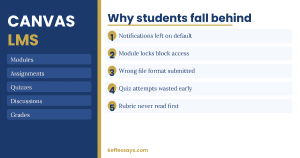
Students fall behind on Canvas assignments for predictable reasons: notifications not set up correctly so deadlines are missed silently, module locking preventing access to required content, submission type errors (submitting in the wrong format or to the wrong assignment slot), and quiz attempts used prematurely before preparation is complete.
The eight methods below address each of these failure points directly.
Incorrect notification settings are the single most common cause of missed Canvas deadlines — fix these first.
Method 1: Fix Your Canvas Notification Settings Before Anything Else
The single most impactful piece of canvas class help available costs zero effort and takes four minutes: go into your Canvas notification settings right now and set deadline reminders, grade notifications, and announcement alerts to deliver directly to your phone.
Most students leave Canvas notifications on the default settings, which send a daily digest email. A daily digest means you could receive a notification about an assignment due at midnight at 6pm the same evening — leaving six hours when you might have had 24. This is a system setting problem, not a motivation problem, and fixing it changes your relationship with Canvas completely.
Here is the correct Canvas notification setup for a university student:
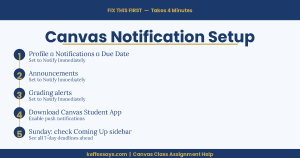
Step 1: In Canvas, click your profile picture (top left) → Notifications. This opens the full notification preferences panel.
Step 2: Set “Due Date” notifications to “Notify Immediately” on both email and push notification (if you have the Canvas Student app). This triggers a reminder 48 hours before every assignment deadline.
Step 3: Set “Grading” to “Notify Immediately” — so you know the moment a mark is released rather than checking manually every day.
Step 4: Set “Announcement” to “Notify Immediately” — instructors use announcements for last-minute changes to assignments, extended deadlines, and exam information. Missing an announcement because of a digest setting has failed more students than the assignment itself.
Step 5: Download the Canvas Student app on your phone (free on iOS and Android) and enable push notifications. Canvas push notifications are more reliable than email for time-sensitive alerts.
Canvas has four distinct assignment submission types — using the wrong one costs you marks even when your work is correct.
Method 2: Understand Canvas Assignment Types to Avoid Submission Errors
Canvas class help that focuses only on content misses one of the most common ways students lose marks: submitting work in the wrong format, to the wrong assignment slot, or using the wrong submission type.
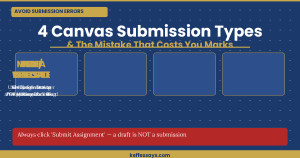
Canvas supports four main assignment submission types, and each behaves differently:
| Submission Type | How It Works | Common Mistake |
|---|---|---|
| File Upload | You attach a document (Word, PDF, Excel) directly to the assignment | Submitting a .pages file on a Mac that the instructor cannot open — always convert to PDF first |
| Text Entry | You type directly into a Canvas text box | Pasting from Word without checking that formatting has transferred correctly — headers, tables, and special characters often break |
| URL/Website | You submit a link to an external resource | Submitting a Google Doc link that is set to “Restricted” — the instructor cannot access it. Always set to “Anyone with the link can view” |
| Media Recording | You record or upload a video/audio directly in Canvas | Recording in a browser that doesn’t support Canvas media — use Chrome for all Canvas media submissions |
Before submitting any Canvas assignment, confirm three things: you are submitting to the correct assignment slot (not a similar-sounding one in a different module), the file format matches what the instructor specified, and you click the final “Submit Assignment” button rather than just saving a draft. Canvas drafts are not submissions — many students have discovered this too late.
Method 3: Use the Canvas To-Do List and Calendar as Your Primary Planner
Canvas class help starts with organisation, and Canvas has two built-in tools — the To-Do list and the Calendar — that most students never use properly, even though they provide a complete real-time view of every deadline across every course.
The Canvas Dashboard To-Do list (right sidebar on desktop, bottom navigation on mobile) updates automatically every time an instructor adds, changes, or removes an assignment. Unlike a personal planner you have to update manually, Canvas To-Do reflects the actual live state of your coursework at all times.
The Canvas Calendar goes further. It shows every assignment, quiz, and discussion due date in a monthly calendar view, colour-coded by course. You can also add personal events to the same calendar, making it a single planner for both academic and personal deadlines. To access it: click “Calendar” in the left global navigation in Canvas.
The most effective workflow for staying on top of canvas class assignments is:
- At the start of each term, open the Canvas Calendar and export it to Google Calendar or Apple Calendar (Settings → Calendar Feed in Canvas). This puts every deadline directly in the calendar app you already use every day.
- Every Sunday, review the Canvas To-Do list for the coming week and estimate how long each task will take.
- For assignments taking more than two hours, block the work time in your calendar in advance — not just the deadline.
Behind on Canvas Assignments Right Now?
When multiple deadlines are converging and you need expert help fast, KeffEssays has subject specialists ready to support you. Confidential, fast, and built for university students. Use code KE15 for 15% off your first order.
Different Canvas assignment types require different subject strategies — here’s what works by course type.
Method 4: Subject-Specific Canvas Class Help Strategies
Canvas class help looks different depending on whether you’re submitting a nursing case study, an economics problem set, an English literature essay, or a science lab report — the platform is the same, but the content strategy is completely different for each.
Essay-Based Subjects (English, History, Law, Sociology, Business)
For essay assignments submitted through Canvas, the most common failure point is not understanding the marking rubric. Canvas displays the rubric directly on the assignment page — click “View Rubric” before you start writing, not after. Every criterion the instructor will use to grade your work is listed there. Write to the rubric, not just to the question. Many students write excellent essays that score poorly because they addressed the question but ignored the rubric criteria for structure, referencing, or critical analysis.
For referencing, Purdue OWL is the most reliable free resource for APA, MLA, and Chicago citation formats. Scribbr covers Harvard referencing in detail for UK students. Both are free and more accurate than citation generators.
Nursing and Health Sciences
Nursing Canvas assignments typically combine case studies with evidence-based practice requirements. Every claim in a nursing Canvas assignment should be supported by a peer-reviewed source — use PubMed for clinical evidence and NICE guidelines for UK clinical standards. The most common weakness in nursing Canvas submissions is generic responses that describe what should happen clinically without explaining why, with reference to specific evidence.
STEM and Quantitative Subjects
For maths, statistics, engineering, and science Canvas assignments, the submission format matters as much as the answer. Always show full working — Canvas quizzes that accept numerical answers will mark a correct final number wrong if rounding instructions were not followed precisely. For written STEM assignments, confirm whether you should submit as PDF (preserves equations and formatting) or whether your department uses a specific template that must be maintained.
Discussion Posts
Canvas discussion posts are graded participation tasks that many students treat as optional. They are not optional — most course grades include a participation component that is entirely made up of Canvas discussion scores. A strong Canvas discussion post does three things: makes an original argument or observation (not just a summary of the reading), references at least one course material or external source, and replies substantively to at least two classmates. Thin, one-paragraph posts that simply agree with the question prompt consistently score in the bottom rubric tier.
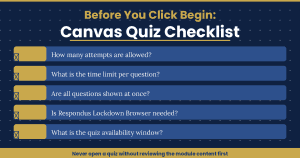
Canvas quizzes have settings that vary by instructor — understanding them before your first attempt is critical.
Method 5: How to Approach Canvas Quizzes and Timed Assessments
Canvas quizzes are one of the most anxiety-inducing parts of requests for help with Canvas assignments because once the timer starts or an attempt is used, there is no going back — preparation before the first click is everything.
Before attempting any Canvas quiz, check these settings on the quiz page itself:
- Number of attempts allowed: Is this one attempt only, or multiple? If multiple, does Canvas keep your highest score or your most recent score? These are different things and significantly change your strategy.
- Time limit: How many minutes do you have? Work out the time per question before you start (total time ÷ number of questions). If you have 30 minutes for 20 questions, that is 90 seconds per question — know this in advance.
- Question display: Does Canvas show all questions at once or one at a time? One-at-a-time display means you cannot go back once you move forward on some quiz settings.
- Lockdown browser: Does this quiz use Respondus Lockdown Browser? If so, you must open it in the Respondus application, not standard Chrome — standard Chrome will block your submission.
- Available window: Some Canvas quizzes are only available between specific dates and times. Missing the window means a zero, regardless of reason.
The most effective the best approach for Canvas quiz preparation is to use any available practice quizzes in the same module first, review the relevant lecture slides immediately before attempting, and — if the quiz is open-book — prepare a one-page reference sheet with key formulas, definitions, or frameworks before you click “Begin.”
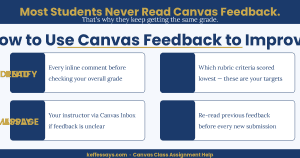
Canvas SpeedGrader feedback from your instructor is one of the most valuable and most ignored resources on the platform.
Method 6: How to Use Canvas Feedback to Improve Every Subsequent Assignment
One of the most overlooked sources of help with Canvas assignments is the feedback your instructor leaves directly inside Canvas after grading — most students check the grade, ignore the comments, and repeat the same mistakes on the next assignment.
When an instructor grades a Canvas assignment through SpeedGrader, they can leave inline comments on specific sentences, overall written feedback, and a completed rubric showing exactly which criteria you met and which you didn’t. This feedback is visible to you in the Grades section — click the assignment name, then look for the comments icon or the speech bubble on inline submissions.
The correct way to use Canvas assignment feedback is:
- Read every inline comment before looking at the overall grade. Inline comments tell you specifically which paragraph, sentence, or calculation was the problem.
- Open the rubric feedback and identify which criteria scored lowest. These are your specific improvement targets for the next assignment, not general areas of weakness.
- If the feedback is unclear, use Canvas Inbox to message your instructor directly. Phrase it as a request for clarification, not a grade dispute: “Could you help me understand what I would need to do differently in [specific criterion] to improve my approach on the next assignment?”
- Before submitting your next Canvas assignment, re-read the feedback from the previous one. This single habit is responsible for the most consistent grade improvements we see in students who seek canvas class help.
Need Expert Help With a Canvas Assignment?
KeffEssays has been supporting UK and US university students since 2012. Subject specialists, fast turnaround, fully confidential. Use code KE15 for 15% off your first order.
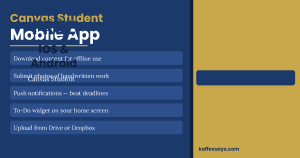
The Canvas Student mobile app brings your entire coursework schedule to your phone — set it up on day one of term.
Method 7: Use the Canvas Student Mobile App Properly
Canvas class help is available in your pocket through the Canvas Student app — but only if it’s set up correctly, because the default mobile app configuration misses most of the features that make it genuinely useful for keeping up with university assignments.
The Canvas Student app (free on iOS and Android) allows you to view and submit assignments, participate in discussions, check grades, receive push notifications, and access course materials — all from your phone. For students who are commuting, working part-time, or managing a busy schedule, the app makes canvas class assignments accessible in the gaps of the day that would otherwise be dead time.
Key mobile app features most students don’t use:
- Offline mode: Canvas allows you to download course content for offline viewing. If you’re on a commute or in an area with poor signal, downloaded materials mean you can still review readings and prepare for assignments without an internet connection.
- Assignment submission from phone: You can photograph a handwritten assignment, upload it directly from your phone’s camera roll, and submit to Canvas without touching a laptop. For lab sketches, handwritten maths, or quick response tasks, this is far faster than scanning.
- To-Do widget: On both iOS and Android, you can add a Canvas To-Do widget to your home screen. This shows your next three upcoming Canvas deadlines without even opening the app — a passive reminder system that catches deadlines before they become emergencies.
Method 8: When to Get Expert Canvas Class Help
The most important piece of advice in this entire guide is knowing when the right move is to stop trying to manage alone and get qualified expert support — before the deadline, not after it.
University students in 2026 are managing more competing pressures than any previous generation: placement requirements, part-time work, international study in a second language, caring responsibilities, and mental health challenges all sit alongside full academic workloads. Canvas makes those workloads more visible and more trackable — but it does not make them smaller.
Expert canvas class assignment help is the right decision when:
- Multiple Canvas deadlines are converging in the same week and you cannot do all of them to a standard that protects your grade
- You are stuck on a Canvas assignment in a subject outside your primary area and do not have enough time to build the foundational knowledge needed to complete it correctly
- You have used your quiz attempts, the grade was poor, and the canvas assignment carries significant weight in your final module mark
- English is not your first language and the writing standard required for Canvas essay submissions is beyond what you can currently produce under time pressure
- You are in your final year and a single Canvas assignment could affect dissertation eligibility or honours classification
KeffEssays provides expert academic support for Canvas assignments and all university coursework across UK and US universities. Writers hold subject-specific degrees, understand Canvas submission requirements and rubric formats, and deliver work that is written to the standard your course demands. The service is confidential, fast, and has been trusted by students since 2012.
Use code KE15 for 15% off your first order at keffessays.com/order.php.
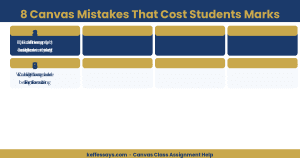
These are the eight most common Canvas mistakes — knowing them in advance prevents most of the avoidable failures.
The 8 Most Common Canvas Class Mistakes (And How to Avoid Them)
Most canvas class help requests come down to the same recurring mistakes — understanding what they are lets you avoid them entirely rather than learning from them the hard way.
| # | Mistake | How to Avoid It |
|---|---|---|
| 1 | Saving a draft instead of submitting | After every Canvas submission, check the Grades tab to confirm the assignment shows as “Submitted” not “Missing” |
| 2 | Submitting to the wrong assignment slot | Read the assignment title carefully — Canvas courses often have similarly named assignments in different weeks |
| 3 | Missing discussion post deadlines (they have separate due dates from replies) | Check both the initial post deadline AND the reply deadline — they are often different dates in Canvas |
| 4 | Using all quiz attempts before studying | Never open a Canvas quiz until you have reviewed the relevant module content — you cannot undo a used attempt |
| 5 | Ignoring locked modules | Check module prerequisites at the start of each week — some content won’t unlock until you complete a prior step |
| 6 | Not reading the rubric before writing | Open “View Rubric” on every Canvas assignment before starting — write to the rubric criteria, not just the question |
| 7 | Submitting the wrong file format | Unless told otherwise, always submit essays and reports as PDF — it preserves formatting across all devices and operating systems |
| 8 | Assuming Canvas time = your local time | Canvas deadlines display in your device’s time zone — if you travel or use a VPN, check that Canvas is reading your correct local time |

The most common Canvas questions answered — bookmark this section for quick reference.
Frequently Asked Questions — Canvas Class Help
What is the best way to get help with Canvas assignments when I’m behind?
Canvas class help when you’re already behind follows a triage approach: first, open your Canvas Calendar and list every outstanding deadline in order of due date and grade weight. Prioritise high-weight assignments due soonest. For assignments you can still complete yourself, use the built-in rubric, subject resources listed in this guide, and campus tutoring. For assignments where the deadline is imminent and you need expert help, KeffEssays provides fast, confidential support at keffessays.com/order.php.
Can I submit a Canvas assignment after the deadline?
This depends entirely on your instructor’s settings. Canvas allows instructors to set hard deadlines that lock submission after the due date, or availability windows that accept late submissions with automatic grade penalties. Check the assignment page — if the “Submit” button is still active after the deadline, late submission is technically possible but may incur a point deduction. If the submission is locked, contact your instructor directly through Canvas Inbox or your university’s extension request process.
Why does my Canvas assignment show as “Missing” even though I submitted it?
A “Missing” status in Canvas after you believe you submitted means either the submission did not complete (a draft was saved but not submitted), the file failed to upload fully, or you submitted to a different assignment slot than intended. Go to the Grades tab, click the assignment name, and check whether a submission receipt is shown. If no submission is recorded, resubmit immediately and contact your instructor to explain the situation.
How do I see my instructor’s feedback on a Canvas assignment?
Canvas feedback is found in the Grades section. Click the assignment name to open the submission view. Inline comments appear as highlights or annotations on your document — hover over highlighted sections to read the comment. Overall feedback appears in the Comments section on the right side of the screen. Rubric scores are shown by clicking the rubric icon. If you submitted as a file upload, you may need to open the document preview to see inline comments.
Does KeffEssays help with Canvas assignments?
Yes. KeffEssays provides expert academic support for Canvas assignments across all subjects covered by UK and US university courses — essays, case studies, discussion posts, reports, nursing assignments, and more. The service is confidential and available to students at any stage of their degree. Place your order at keffessays.com/order.php and use code KE15 for 15% off your first order.
What subjects does Canvas class assignment help cover?
Canvas is used across virtually every university subject, so this guide applies to: nursing and health sciences, business and accounting, economics, law, English literature, history, sociology, psychology, biology, chemistry, engineering, education, and more. The strategies in this guide apply regardless of subject — the Canvas platform behaves the same way whether your assignment is a nursing case study or an economics problem set.
How do I stop missing Canvas deadlines?
The three changes that eliminate most missed Canvas deadlines are: set Canvas notifications to “Notify Immediately” for due dates and announcements, export the Canvas Calendar to Google Calendar or Apple Calendar so deadlines appear alongside the rest of your schedule, and add a Canvas To-Do home screen widget on your phone. These three steps create a three-layer reminder system that makes it very difficult to miss a deadline passively.
Is Canvas available on mobile for submitting assignments?
Yes. The Canvas Student app (free on iOS and Android) allows full assignment submission from your phone including file uploads, text entry, and media recording. For document submissions, you can upload directly from Google Drive, Dropbox, or your phone’s files app. Always confirm the submission completed by checking the Grades tab in the app after submitting — the same as you would on desktop.
Summary — Canvas Class Help That Actually Works
Canvas class help that produces real results combines platform knowledge, subject strategy, and knowing when to get expert support. The eight methods in this guide cover all three layers:
- Platform: Fix notification settings, understand submission types, use the Calendar and To-Do list properly, and set up the mobile app with offline access and widgets
- Subject: Write to the rubric, use subject-specific resources (PubMed for nursing, Purdue OWL for referencing, Khan Academy for STEM), and treat discussion posts as graded work
- Support: Use instructor feedback systematically, and escalate to expert help at KeffEssays before deadlines become emergencies — not after
Canvas is a powerful platform when you know how to use it. The students who do well on Canvas assignments are not necessarily the most naturally talented — they are the ones who understand the system, manage their time around it, and get the right support at the right time.
If you need expert help with your Canvas work right now, KeffEssays is available. Visit keffessays.com/order.php and use code KE15 for 15% off your first order.
Canvas Assignment Due Soon? We Can Help.
KeffEssays has subject specialists across all university disciplines. Fast turnaround, fully confidential, trusted since 2012. Don’t wait until the deadline — get ahead of it.